Running WinPopup at StartUp
WinPopup can be placed in your StartUp menu in your Start/Program menu so that it automatically comes up when you turn on your system. If you elect to load this program in this manner, then this program will be readily available on every machine. You may learn how to install Winopup here: How to install Winpopup.

If you need an more useful software than Winpopup , please take a look to the LanTalk XP LAN messenger, LanTalk is Winpopup compatible.
Step 1 :
Click on the Start button, select Settings and Taskbar and Start menu.... Select Tab Start menu programs. Click on the Add button.
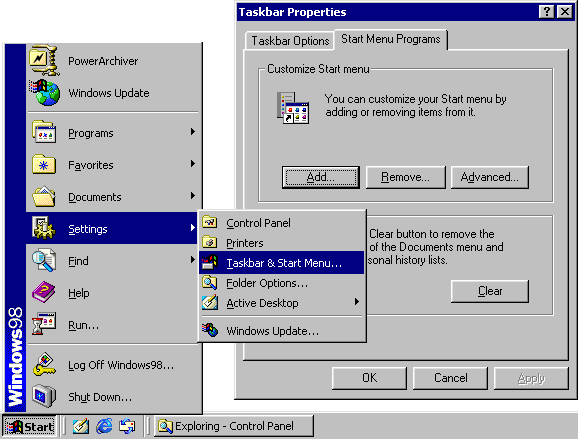
Step 2 :
It will ask you the location of the program you wish to add. Select browse button.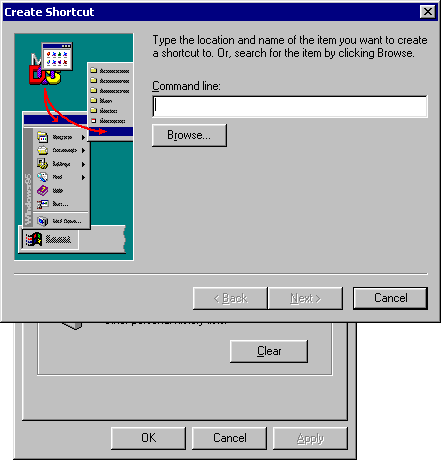
Double click on the Windows directory
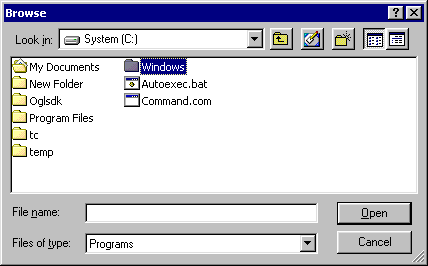
Scroll to the end of the list to find Winpopup.exe. Click on this file. Click on Open button.
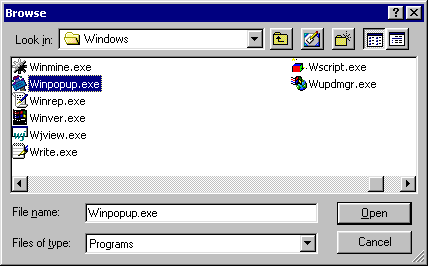
You should see in the location box the path to WinPopup. It should be ( for example ) C:\WINDOWS\Winpopup.exe Click on Next button at the bottom of the window.
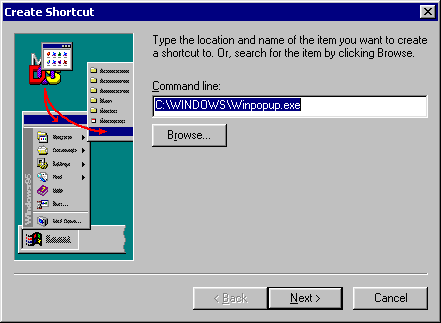
You can also just type in the line above in your Command line box in the dialog box without browsing.
Step 3 :
It will ask you to select the folder you wish to place this shortcut in. Scroll down and select StartUp. Click on the Next button to continue.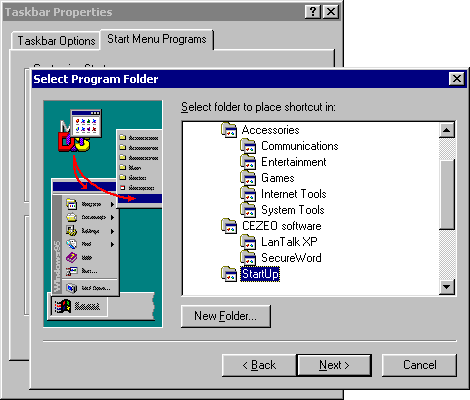
Step 4 :
You may rename the program if you wish. And then click on finish.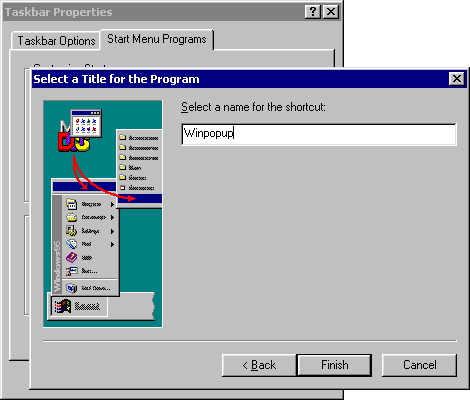
When you restart your machine, WinPopup will appear as a box at the top of your screen. If you close the box, you will close your program and will not be able to receive any of the messages. Leave the program in a minimized position while your system is turned on.
If you need more powerful software than Winpopup, please take a look to LanTalk LAN messenger, LanTalk XP is Winpopup compatible.